

How to fix my phone not charging


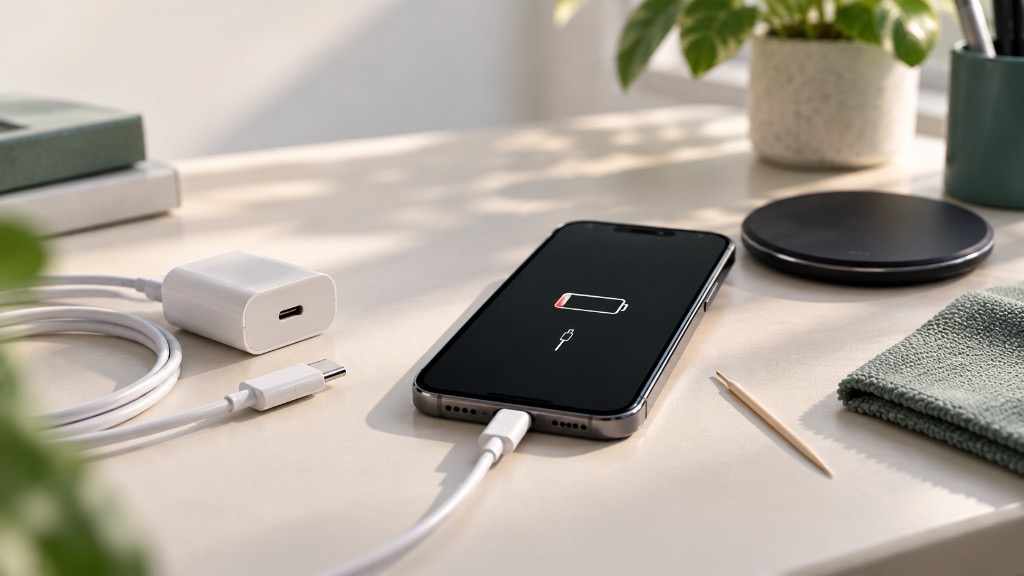
Most phones that won’t charge are not broken. The fault is usually the cable, then the port, then the battery, in that order. You can work out which one it is in about thirty seconds, with no tools. This guide covers iPhone, Samsung and Pixel, and it tells you when a phone is worth fixing and when it isn’t.
If it turns out to be the battery and the phone has some age on it, you can get an instant quote for your iPhone, your Samsung Galaxy or your Google Pixel before you decide anything. Work through the fixes first.
Start here: the 30-second triage
Two checks tell you which of the two common faults you have. Do these before you touch the port, because most people who damage a charging port were chasing a problem that was never in the port.
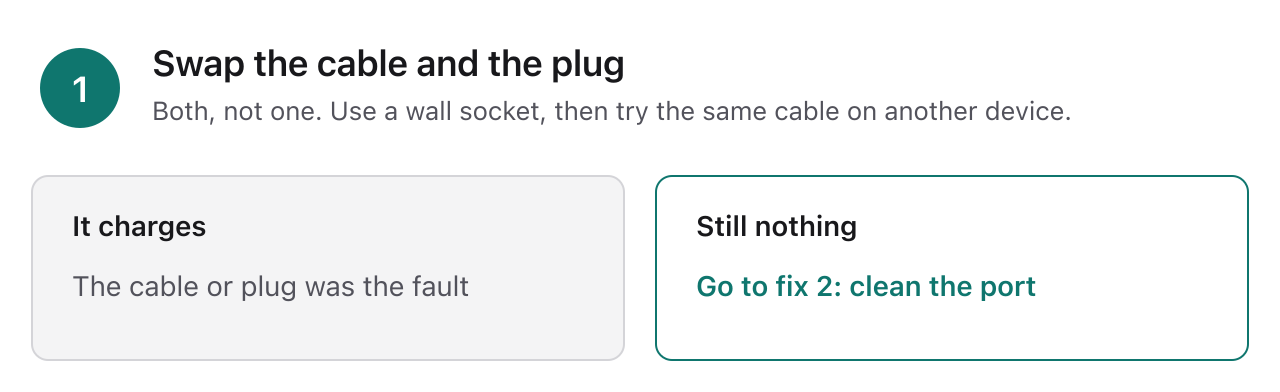
- Swap the cable and the plug, and use a wall socket. Not one or the other, both. If it charges, you are done.
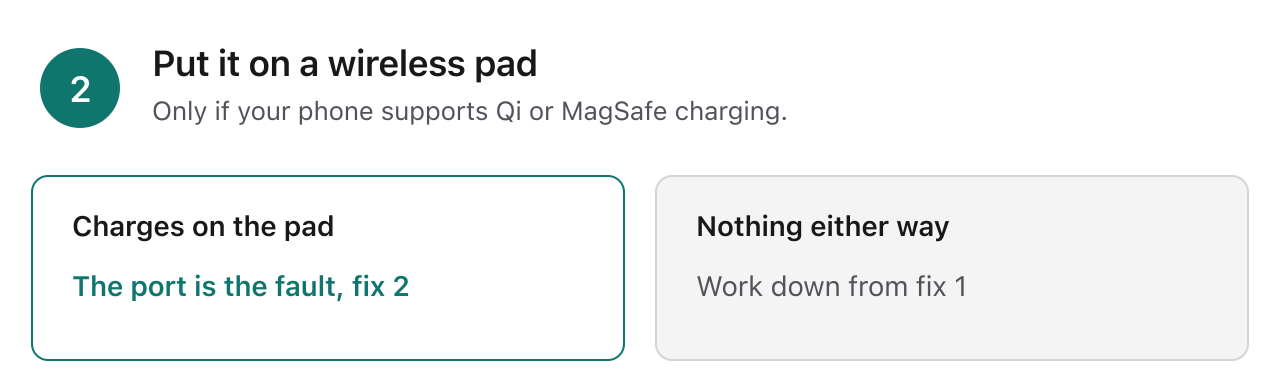
- If your phone supports wireless charging, put it on a pad. Charging wirelessly but not by cable means the port is the fault, not the battery.
Cable swap fixed it, you are finished. Wireless works but the cable doesn’t, go to fix 2. Neither works, start at fix 1 and work down.
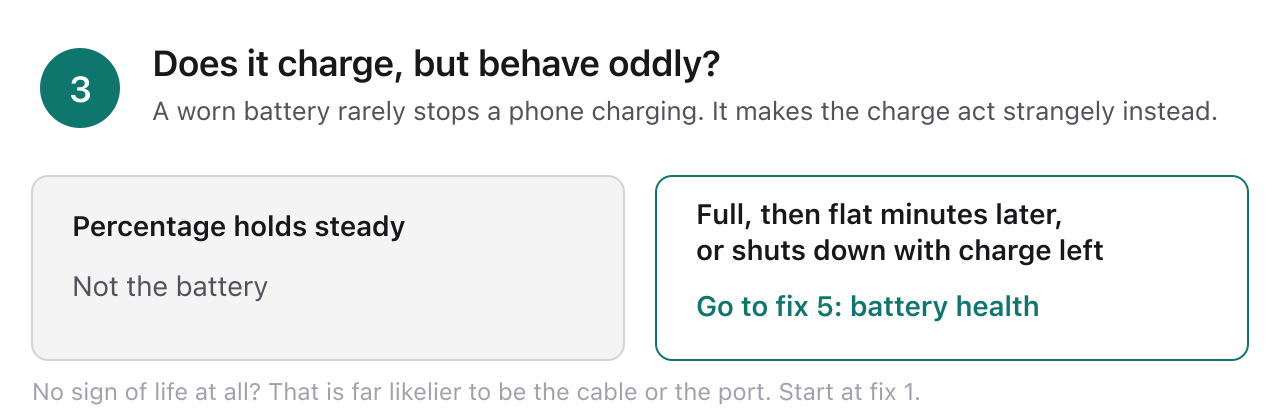
There is a third symptom worth separating out here, because it is not a charging fault at all. If the phone does charge, but the percentage jumps around, full one minute and nearly flat a few minutes later, or it shuts down with charge still showing, that is a worn battery rather than a charging problem. Skip to fix 5.
Why is my phone not charging? The five real causes
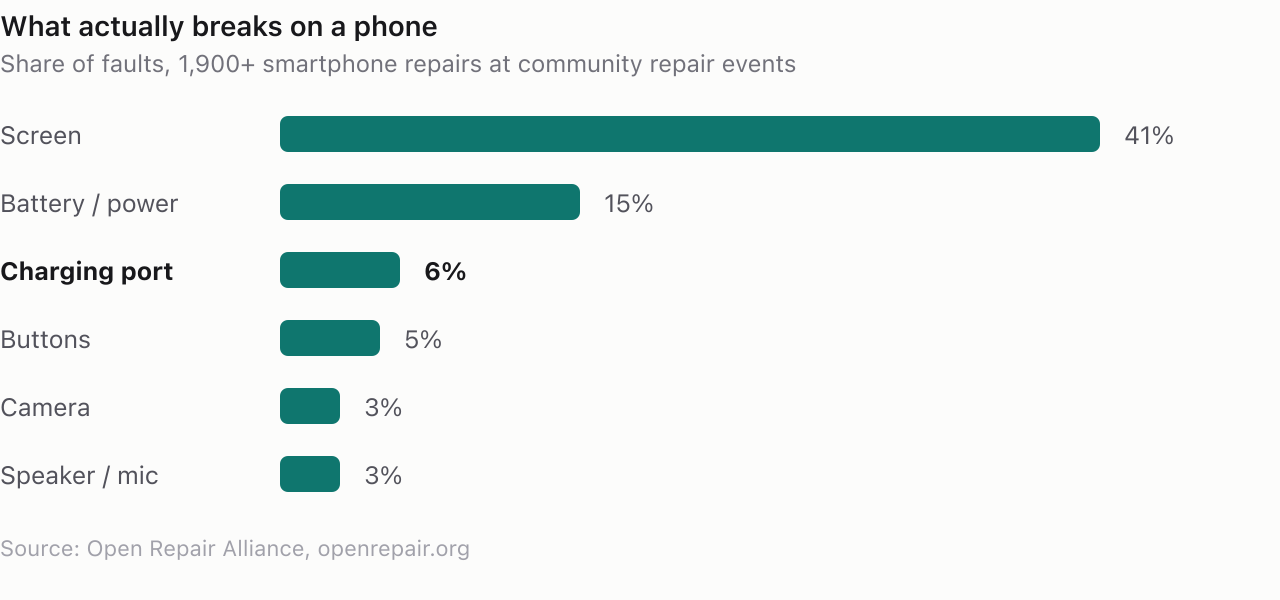
A phone that won’t charge has a much narrower list of causes than most people expect, and the expensive ones are the rarest. Community repair data backs this up. Across more than 1,900 smartphone repairs logged at community repair events by the Open Repair Alliance, 41% of faults were screens and 15% were battery or power, while charging ports accounted for just 6%.
So the odds are on your side. The five causes, most likely first:
- A worn cable or adapter. Cables fail at the strain point near the connector, often with no visible damage.
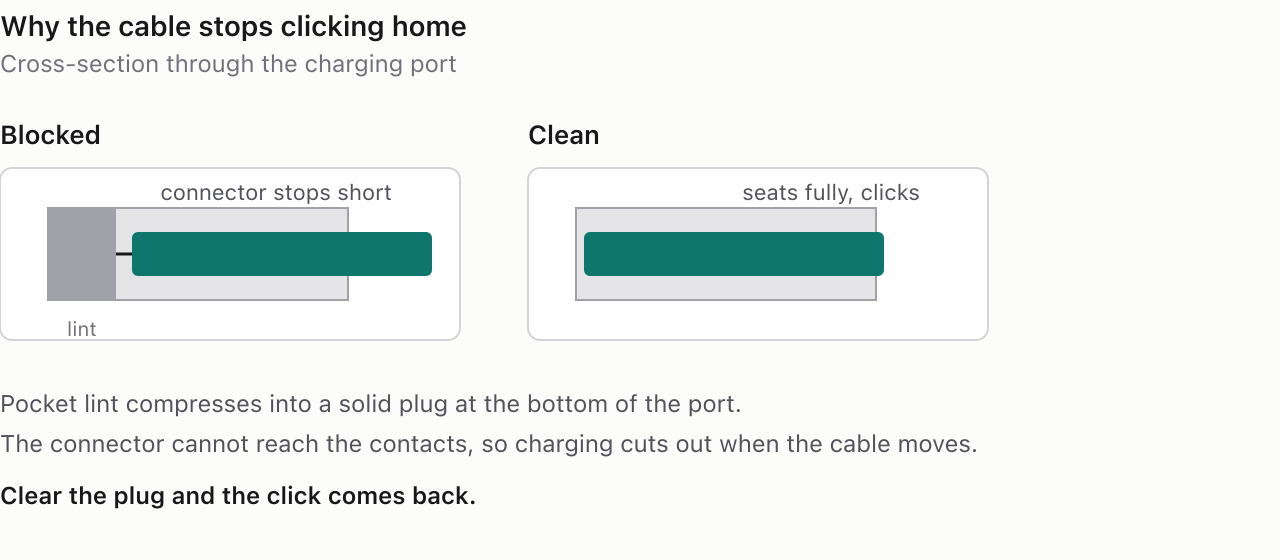
- A blocked port. Pocket lint compacts at the bottom of the port until the connector can no longer seat fully.
- A software glitch. Less common than the internet suggests, but free to rule out.
- A battery at the end of its life. The phone charges, just badly, or stops holding it.
- Liquid detected. The phone is refusing to charge on purpose, to protect itself.
A damaged port that genuinely needs a repair sits near the bottom of that list, not the top.
Fix 1: test the cable, plug and socket
Start here because it costs nothing and it is the single most likely answer. The mistake almost everyone makes is changing one thing at a time on the same phone, which tells you almost nothing. Swap the cable, swap the plug, and use a wall socket rather than a laptop port or a car charger.
Then do the test that actually isolates the cable: plug the same cable into a different device. If it charges that one, your cable is fine and the problem is in your phone. If it doesn’t, you have found it.
One more thing, and Apple gives this instruction in its own support steps: give it time. Plug the phone in and leave it for half an hour before you conclude anything. A deeply flat battery can show nothing on screen for several minutes. If there is still no sign of life after thirty minutes, force restart it (see fix 3) and give it another half hour.
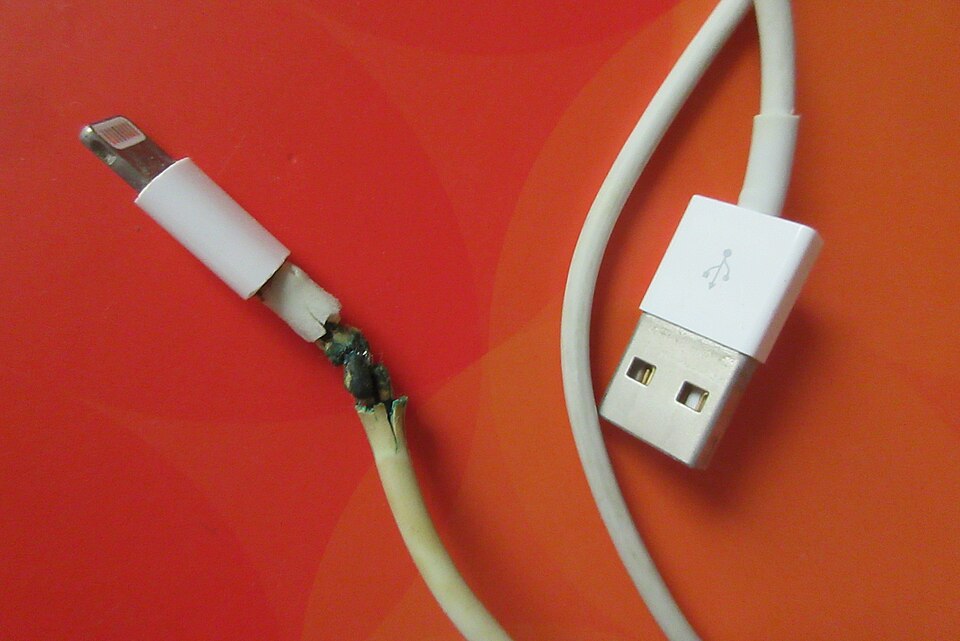
Credit: Kihopczmaluoch, CC BY-SA 4.0, via Wikimedia Commons
Fix 2: clean the charging port
This is the fix that most often works, and it is also the one most likely to go wrong. Before you start, check whether you have the symptom that points here: the cable no longer clicks home, it sits slightly proud, and the charging cuts out if you nudge it. That is compacted lint, not a dead port. When the port is clean again, the click comes back.
What I found in mine
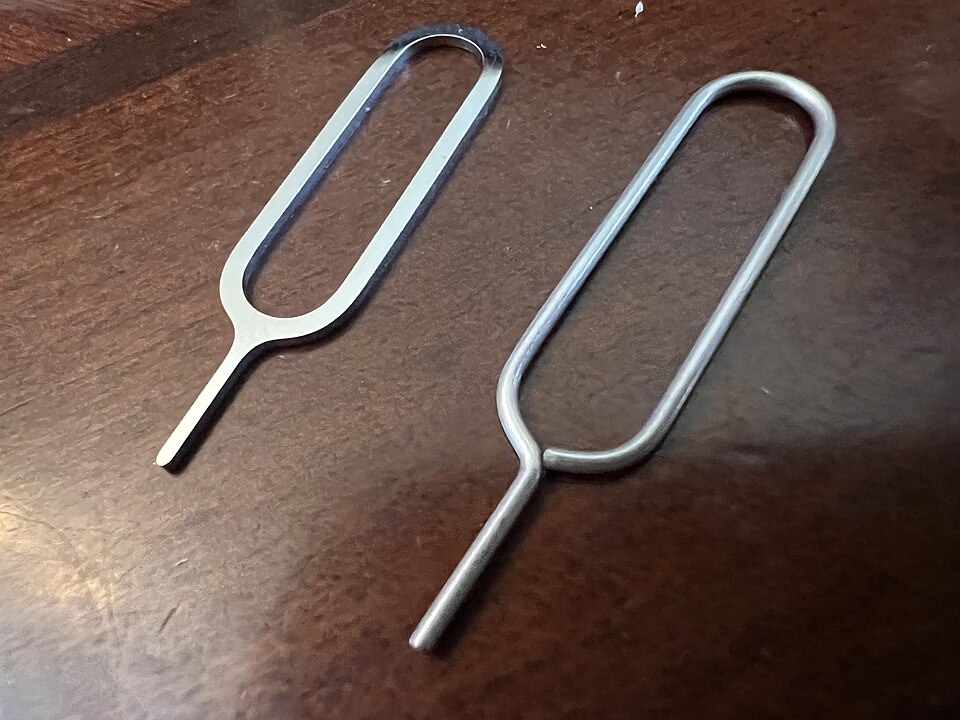
Mine didn’t die all at once. It started needing the cable at a particular angle, then needing it held there, and over a few weeks it stopped taking a charge at all unless I fiddled with it. Shining a torch into the port showed what looked like an empty socket, but there was a solid grey plug of pocket lint packed flat against the bottom, compressed over months into something closer to felt than dust. I eased it out with a pin and the cable clicked home properly on the first try.
Two warnings, because a pin is the risky version of this. Power the phone off first, work slowly, and never scrape sideways across the metal pins. A wooden toothpick does the same job with no risk of shorting the contacts, and that is what I would hand to someone else.
The tools, safest first
Anything non-conductive is a better choice than anything metal. Repair technicians tend to reach for these, in this order:
- A wooden or plastic toothpick
- A small zip tie, which has the advantage that nothing can splinter or break off inside
- An interdental brush
- A soft antistatic brush
Worth knowing about the SIM ejector tool in your phone’s box: it is steel, not plastic. It is the right shape for the job and plenty of people use it, but it belongs in the metal category rather than the safe one. Metal pins, needles and SIM tools all work, and they can all scratch the conductive coating off the contacts, which turns a free fix into a repair bill.
How to do it without damage
Power the phone off. Work in good light. On USB-C, run the tool down each side of the central tongue rather than straight into the middle, and never lever that tongue outward, because it is fragile and it is not replaceable on its own. On Lightning, work the corners where lint collects. Go gently and repeat, rather than pushing harder.
Do not use compressed air. It pushes debris further in rather than out, and Apple’s own cleaning guidance says plainly: don’t use compressed air. Plenty of guides still recommend it.
On isopropyl alcohol there is an honest disagreement. Repair communities use it routinely on a shaved-down toothpick and report good results. Apple’s guidance is no liquids and no moisture in openings. The dry method is what we recommend, and if you use alcohol you are going against the manufacturer, knowingly.
Fix 3: restart, then check for updates
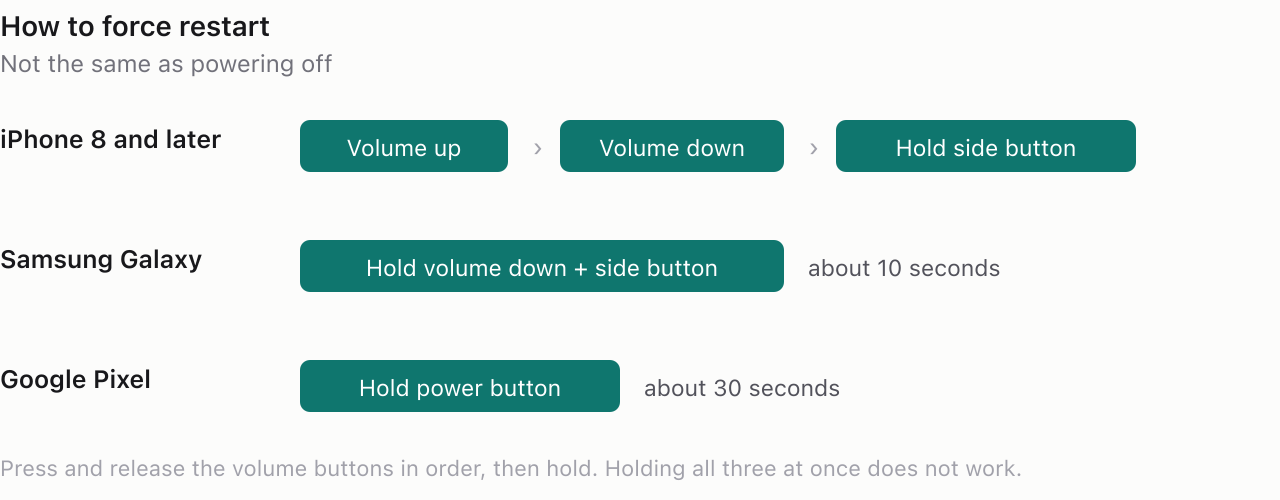
A restart clears the charging controller state, and occasionally that is the whole problem. It takes a minute and costs nothing, so rule it out before going further. A force restart is not the same as powering off, and it is the version you want here.
- iPhone 8 and later: press volume up, then volume down, then hold the side button until the Apple logo appears.
- Samsung Galaxy: hold volume down and the side button together for about 10 seconds.
- Google Pixel: hold the power button for about 30 seconds.
Then check for a software update. Charging behaviour is controlled in software, and charging bugs do get patched. On iPhone that is Settings, General, Software Update. On Android it sits under Settings, System, System update, though the exact path varies by manufacturer.
Fix 4: try a wireless or magnetic charger
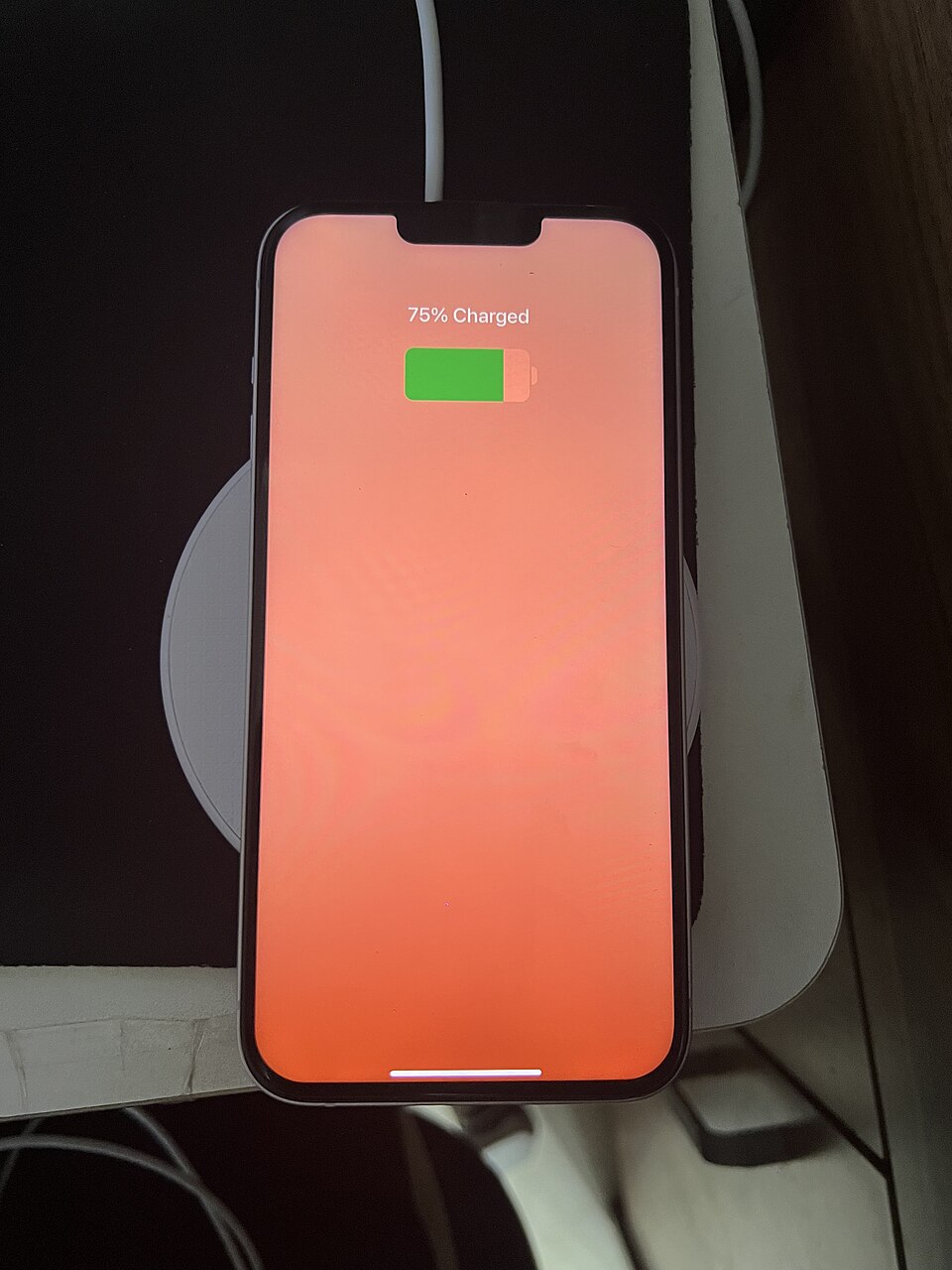
Come to this one after you have checked the cable, the plug and the port, and after you have already tried a second cable and a second charger. At that point a magnetic or wireless charger is the cleanest way to isolate the fault, provided your phone supports it. If it charges on the pad but not through the cable, the port is the problem and the battery is fine. If it won’t charge either way, the battery or the board is involved.
What kept my phone going
Once the port stopped holding a cable reliably, a magnetic charger kept the phone usable while I worked out what to do with it. It also told me the battery was fine, which changed the decision completely.
Compatibility matters here, and a lot of articles get it wrong:
- Qi wireless charging: iPhone 8 and later, and most Android flagships.
- MagSafe: iPhone 12 and later. Newer Android phones use Qi2 magnetic pads.
- Magnetic cable adapters are a different product. They leave a small connector sitting in the port permanently, so they do not help if the port itself is dead.
- A wireless power bank is the practical stopgap while you decide on a repair.
Credit: 茅野ふたば, CC BY-SA 4.0, via Wikimedia Commons
Fix 5: check your battery health
A worn battery rarely stops a phone charging outright. What it does is make the charge behave strangely, and that is a different symptom with a different answer. Check here if any of this sounds familiar:
- The percentage jumps, showing full and then nearly flat a few minutes later
- The phone shuts down with charge still on the meter, then comes back at a lower number when you plug it in
- It drains in hours rather than a day, or runs hot while charging
- It charges to a point and stops there
A battery only stops a phone charging completely in the extreme case, where a cell has failed or the phone has been flat for months. If your phone shows no sign of life at all, the cable and the port are far likelier and you should start at fix 1.
- iPhone: Settings, Battery, Battery Health & Charging. Read Maximum Capacity.
- Android: varies by maker. Samsung users can find it in Samsung Members under Diagnostics, Battery status.
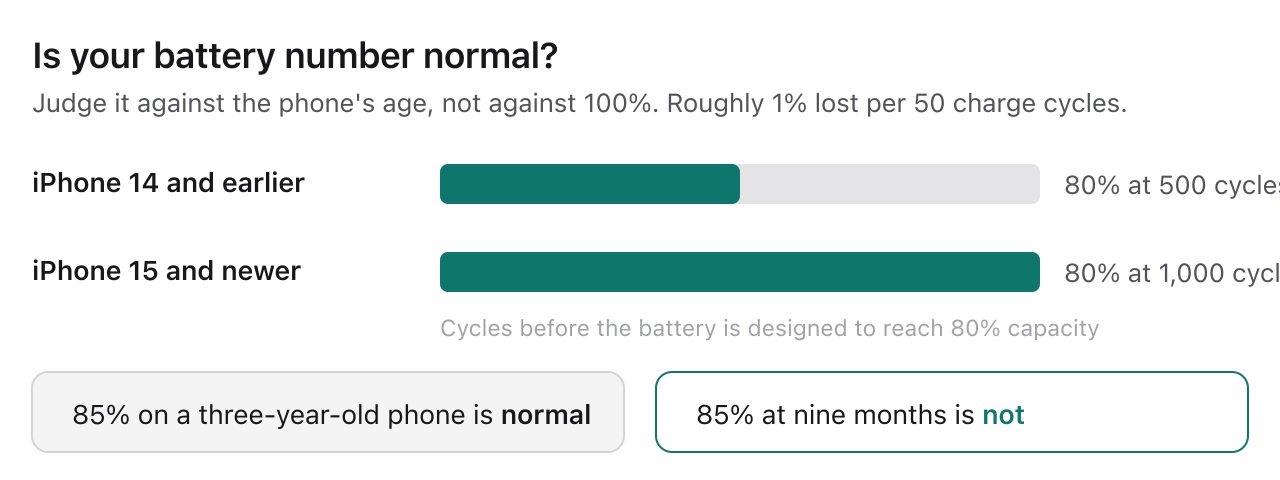
Now judge that number against the phone’s age rather than against 100%. Apple designs iPhone 14 models and earlier to retain 80% of their original capacity at 500 complete charge cycles, and iPhone 15 models at 1,000 cycles. That works out at roughly 1% of capacity lost every 50 cycles. So 85% on a three-year-old phone is normal wear. 85% on a nine-month-old phone is not.
Below 80%, the battery is at the end of its designed life. On iPhone you may also see “Service” in place of a percentage, which means the same thing more bluntly. Our guide on how to stop your phone from overheating covers what a degraded battery does to the rest of the phone.
A replacement battery genuinely fixes this, and on a phone that is otherwise in good shape it is usually the right call. On a five-year-old phone with a failing port as well, it is money spent on a device already near the end.
Liquid, 80% limits and slow charging
Three symptoms get mistaken for charging faults often enough to be worth separating out. Only the first one is urgent.
Why does my phone say liquid detected?
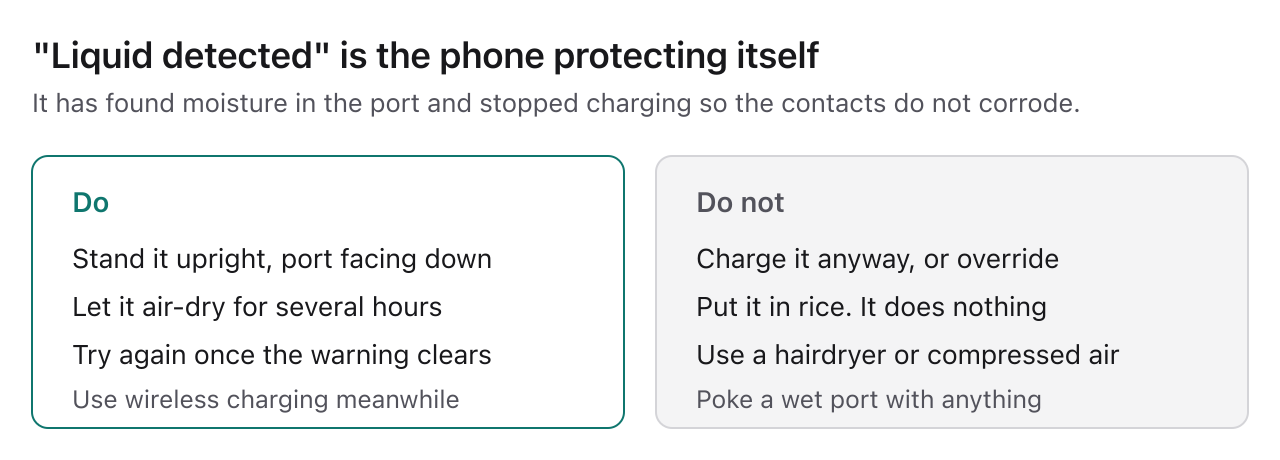
The phone has found moisture in the port and stopped charging to protect the contacts from corrosion. That warning is the phone working correctly. Do not charge it, do not use rice, and do not blast it with a hairdryer. Stand it upright with the port facing down and let it air-dry for several hours, then try again. If the battery has swollen or the back has lifted even slightly, stop using it and read our guide to recycling and disposing of phones safely before doing anything else.
Why won’t my phone charge past 80%?
That is optimised battery charging, and it is a feature rather than a fault. Both iOS and Android hold at 80% and finish the charge based on when they expect you to unplug, because sitting at 100% ages the battery faster. You can turn it off in battery settings, though leaving it on is better for the battery.
Why is my phone charging so slowly?
Usually the adapter. A 5W plug will take hours where a 20W or 30W plug takes under an hour, and old plugs from previous phones are a common culprit. Heat also throttles charging, so a phone charging under a pillow or in direct sun will slow down on purpose.
When it isn’t worth fixing
Most of the time it is worth fixing, and that is worth saying plainly. A cable is a few pounds. A port clean is free at home. A replacement battery on a phone that is otherwise sound is usually good money.
The one that needs a quote before you commit is a port repair. On most phones the port is a replaceable assembly rather than a soldered component, so the job is a part swap. What moves the price is how deep the technician has to go to reach it, and what else the part carries with it. On many iPhones the charging connector comes bundled with the microphones on the same flex, so the part costs more than the port alone would suggest. Ask the shop whether it is a straightforward board swap or a deeper strip-down, and get the number before you agree to anything.
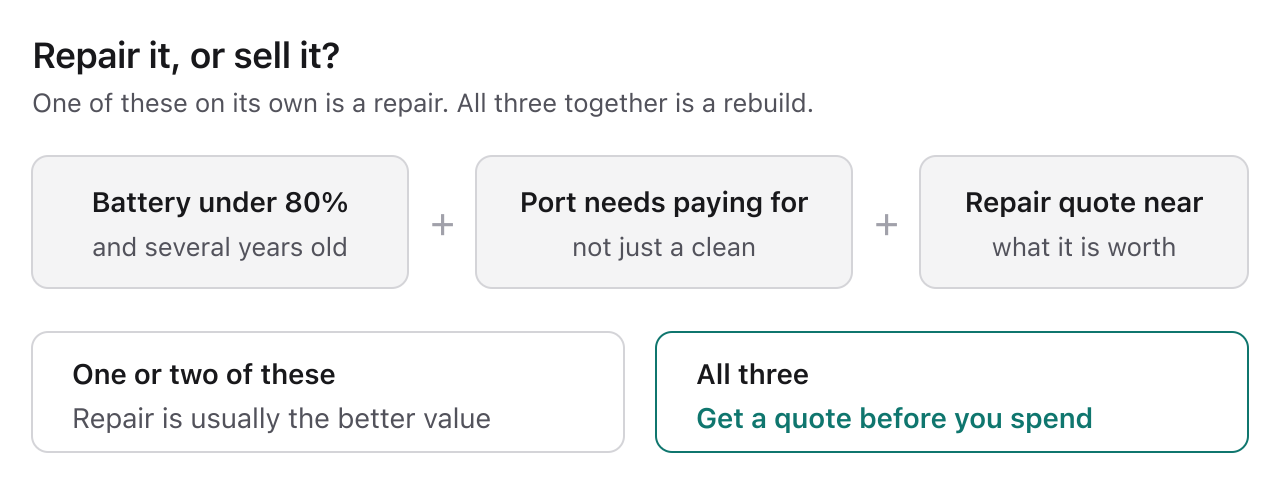
The case for not repairing is a stack, not a single fault:
- Battery health below 80%
- Plus a port that needs a paid repair
- Plus a phone several years old
One of those on its own is a repair. All three together and you are rebuilding a phone worth less than the work.
If you are replacing it rather than repairing it, get an instant quote for your iPhone, your Samsung Galaxy or your Google Pixel. We buy phones with degraded batteries and we quote on the condition you actually have.
FAQs
Why is my phone plugged in but not charging?
How to tell if a charging port is damaged?
How do you fix a phone that won't charge?
What are signs of a failing phone battery?
Getting it sorted
Work down the list in order and most charging faults resolve in the first two steps, for nothing. If the battery has gone and the phone has age on it, selling it is usually better value than rebuilding it.
vendi pays the same day your device arrives, with £10 towards postage and no seller fees, no hidden deductions. Rated 4.9/5 across Trustpilot and Google.
Get an instant quote for your iPhone · your Samsung Galaxy · your Google Pixel

Sell your device
Sell your preloved devices instantly at the best price on the market with same-day payment!
Sell Now