

How to change your Apple Watch face


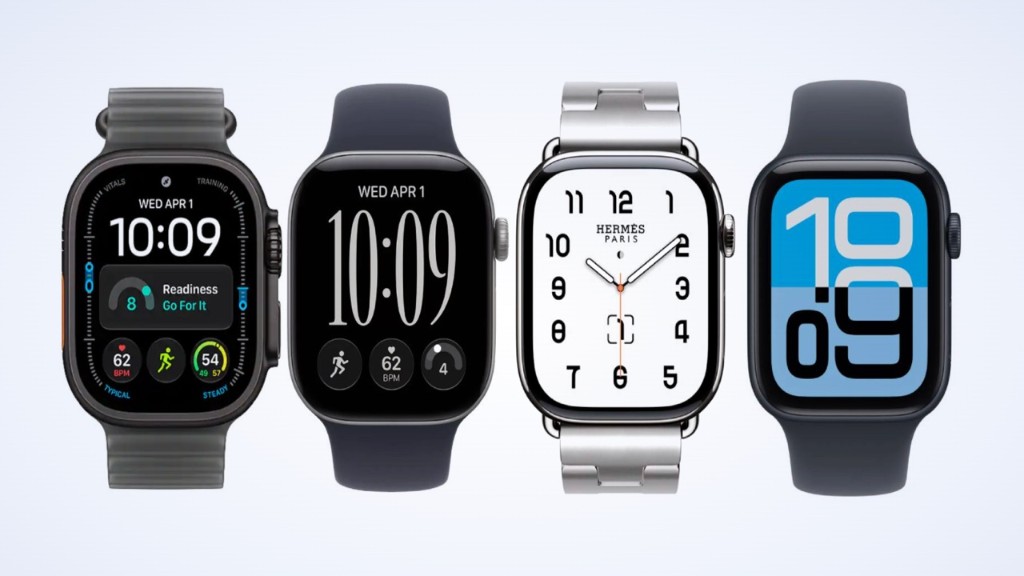
To change your Apple Watch face, touch and hold the current face, swipe left or right, then tap the one you want. Use the Apple Watch app on your iPhone to add new faces and edit their colours and complications. If a face won’t change, it is usually a setting, not a fault.
The steps below are for watchOS 27, the version Apple’s own guide describes as of October 2026. Most of them work the same way on older versions.
1. Switch faces on your watch
The quickest way to change your face is on the watch, not the iPhone. Every face you have added sits in a row, and you scroll through them with one press. Here’s how:
- With the current face showing, touch and hold the display.
- Swipe left or right to the face you want.
- Tap it.
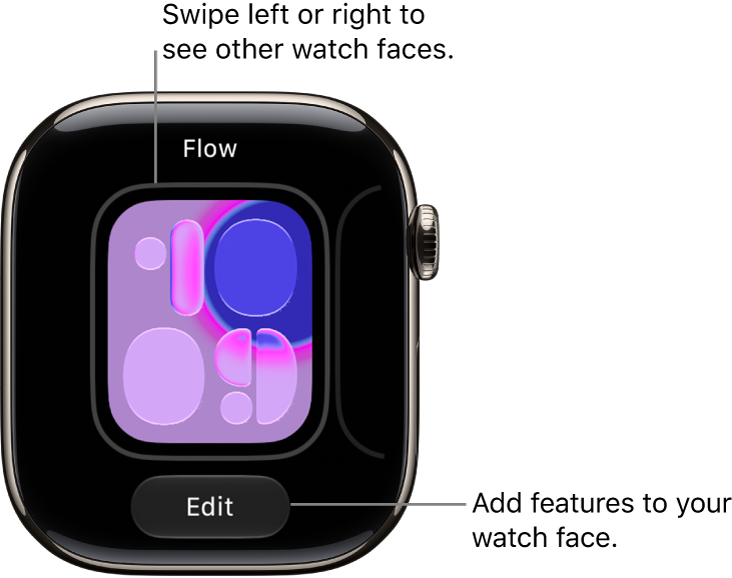
Source: Apple Support, Change Apple Watch faces (watchOS 27)
Turn on swipe to switch
You can skip the touch and hold. Apple added a setting that lets you swipe straight across the face to change it.
- Open the Settings app on your Apple Watch.
- Tap Clock.
- Turn on Swipe to Switch Watch Face.
Pro Tip: leave this off if your face changes when you don’t want it to. A sleeve brushing the screen is enough to swipe to the next face.
2. Add a new face from the Face Gallery on iPhone
The Face Gallery in the Apple Watch app shows every face your watch can run, sorted into categories such as Health and Fitness, Photos and Data Rich. It is the easiest place to browse. You see each face full size and set it up before it reaches your wrist.
- Open the Apple Watch app on your iPhone.
- Tap Face Gallery, then a category. To see everything, scroll down and tap See All Watch Faces.
- Scroll to a face, tap Get, then pick an option.
- Choose a colour or style, and tap a position to set its complications.
- Tap Add to Watch.
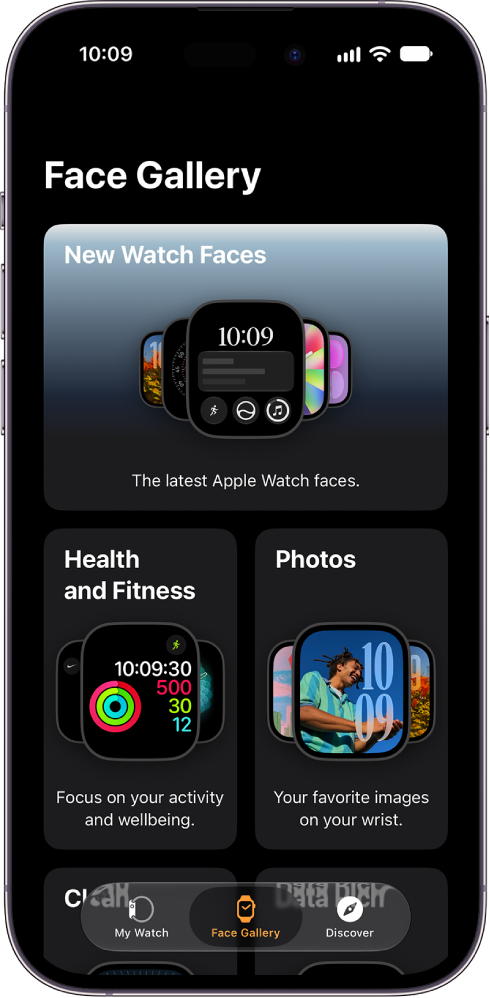
Source: Apple Support, Change Apple Watch faces (watchOS 27)
Apple says the new face joins your collection and becomes your current face. Sometimes it doesn’t arrive. In that case, open the Apple Watch app, tap the face under My Faces, and tap Set as current Watch Face. That is the top reply on an Apple Community thread from an owner who tried more than 100 times.
New faces in watchOS 27
watchOS 27 added two faces, according to Apple’s “What’s new in watchOS 27” page:
- Siri Modular. The date sits at the top, then the time, a wide Siri suggestion and a row of complications. 9to5Mac counted three clock sizes to choose from, plus bezel options on Apple Watch Ultra.
- Pride Luminance. A dynamic analogue face inspired by several Pride flags.
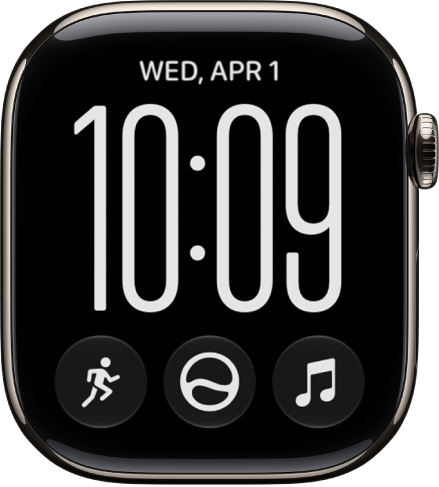
Source: Apple Support, What’s new in watchOS 27
Siri Modular’s Siri features need an Apple Watch Series 9 or later, an Ultra 2 or later, or an SE 3, and Apple still labels them beta. Early reactions are mixed. The top comment on 9to5Mac’s hands-on says the face kept suggesting wind speed and offered no way to change it.
3. Add a face on the watch itself
You can also add a face without your iPhone. The choice is the same, but the screen is smaller, so it is slower to browse.
- With the current face showing, touch and hold the display.
- Swipe left to the end and tap the Add button.
- Tap a collection, such as New Watch Faces or Data Rich.
- Tap Get next to the face you want, then tap Add.
4. Change the colours and complications
A complication is the small piece of information on a face, such as the date, the weather, your Activity rings or your next calendar event. Each face has a set number of slots, and you choose what goes in each one. Here’s how to change them on the watch:
- Touch and hold the face, then tap Edit.
- Swipe left or right to move between pages: colour or style first, complications last.
- Turn the Digital Crown to change a setting. On the complications page, tap a slot, then turn the Digital Crown to pick what goes there.
- Press the Digital Crown to save.
You can change the same settings on your iPhone, with a bigger screen. Open the Apple Watch app and tap a face under My Faces. To add the date, for example, tap a complication slot and choose Date.
Show your step count on the face
Whether you can show steps depends on your watch. watchOS 27 added a Steps complication on Apple Watch Series 12 and Ultra 4 only. Apple says it tracks your steps in real time, right from the watch face. Add it like any other complication.
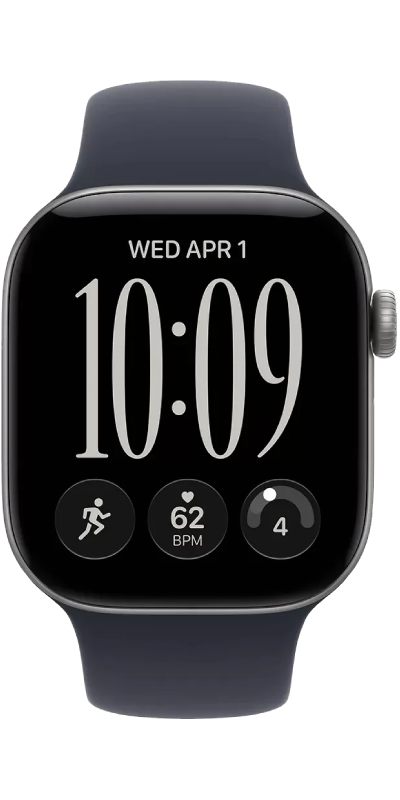

On every other model, there is no built-in steps complication. The Activity complication shows your rings, not a step count. You have two options:
- The Activity app. Open it and scroll down to see your steps for the day.
- A third-party complication. Pedometer++ is the app owners on Apple’s forum recommend most. Owners report that it refreshes every 10 to 15 minutes, not live. If it vanishes after a watchOS update, edit the complication and choose steps again.
5. Put your own photos on the face
The Photos face shows a picture from your library behind the time, and a new one each time you raise your wrist or tap the screen. You set it up in the Apple Watch app.
- Open the Apple Watch app and tap Face Gallery.
- Tap the Photos category, then choose a style.
- Choose your photos. You can shuffle a collection, or tap Choose Photos and pick up to 24.
- Scroll down to change the layout, then tap Add.
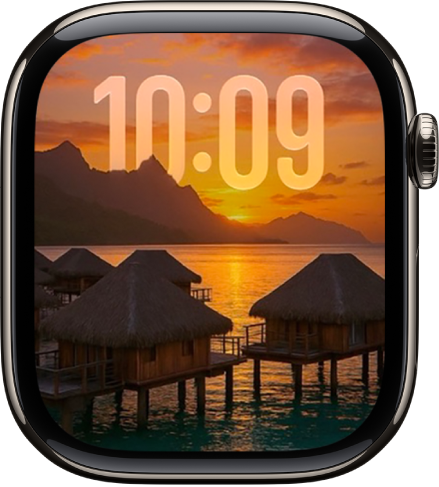
Source: Apple Support, Customise the Photos watch face (watchOS 27)
You can also start from the watch. Open the Photos app, tap a photo, tap the Action button, then tap Create Watch Face. If a photo doesn’t appear, Apple says to check it is in your synced album.
6. Reorder, delete or share your faces
A long collection is slow to scroll through, so it is worth keeping only the faces you use.
- Reorder: in the Apple Watch app, tap Edit next to My Faces and drag the handle beside a face.
- Delete on the watch: touch and hold the face, swipe to the one you want gone, swipe up and tap Remove.
- Delete on iPhone: tap Edit next to My Faces, tap the delete button beside a face, then tap Remove.
- Share: touch and hold the face, tap the share button and pick a contact. They get a link that adds the face to their own watch.
Deleting a face only takes it off the watch. You can add it back from the Face Gallery at any time.
Why your Apple Watch face won’t change (or keeps changing)
Two complaints about faces come up again and again on Apple’s community forum. Some owners can’t get a new face to stick. Others find their face switching back on its own. The causes are different, so check the one that matches what you see.
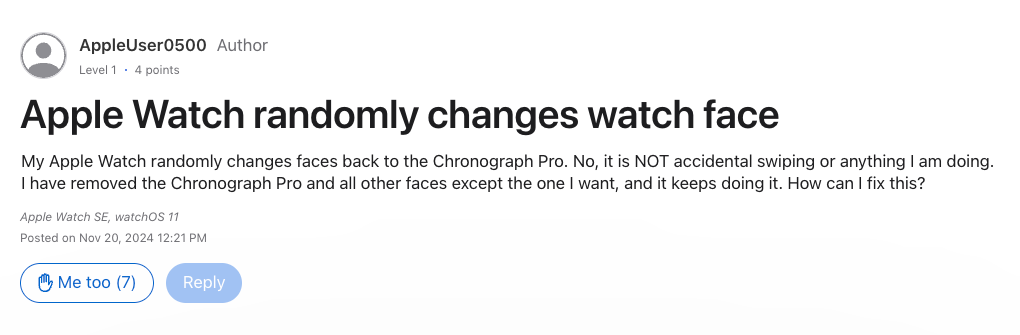
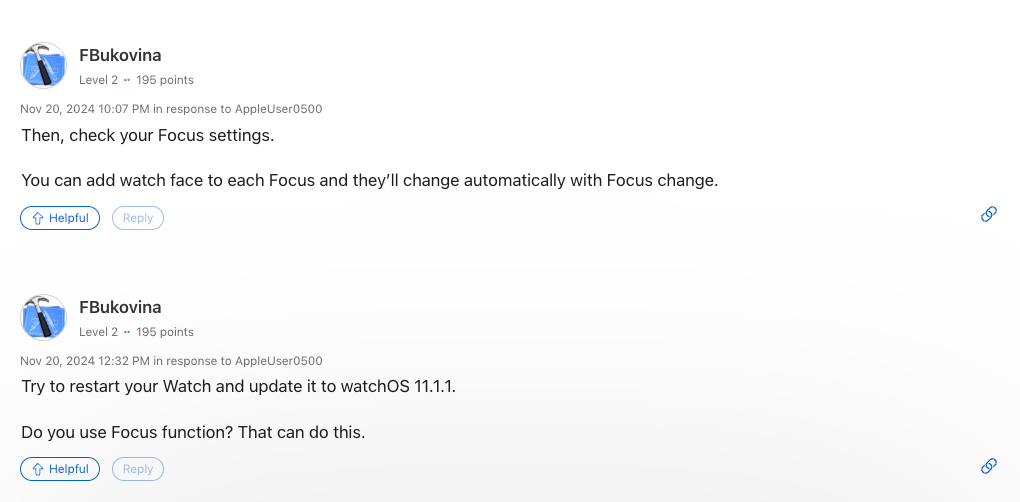
Source: Apple Community thread (Apple Watch SE, watchOS 11, 20 November 2024)
That owner had removed every face but one, and the watch still switched back. The cause was a Focus with a face linked to it.
If your face keeps changing on its own:
- A Focus has a face linked to it. When that Focus turns on, the watch switches face. On your iPhone, go to Settings, then Focus, choose a Focus, and look under Customise Screens. Tap Choose below the Apple Watch to change or remove its face.
- You are swiping by accident. With Swipe to Switch Watch Face on, a brush of the screen changes the face. Turn it off in Settings, then Clock.
- You have faces you don’t use. Remove them, and there is less to land on by accident.
If your face won’t change:
- It was added but not set. Open the Apple Watch app, tap the face under My Faces, then tap Set as current Watch Face.
- Your iPhone is showing a different watch. If you have more than one paired, tap All Watches at the top of the Apple Watch app and pick the right one.
- Your watch can’t run that face. Apple lists Modular Ultra, Wayfinder and Waypoint as Ultra only, and Contour and Modular Duo as not available on SE.
- Your watch or iPhone is out of date. Update both. New faces need the latest watchOS.
- Apple removed it. Updates sometimes drop faces. MacRumors reported that watchOS 26 removed Fire/Water, Gradient, Liquid Metal, Vapor and Toy Story.
If none of these work, restart both your iPhone and your watch. Owners on Apple’s forum report that unpairing and restoring from a backup fixes faces that won’t sync. It takes a while, so try it last.
Faces you can’t get on your Apple Watch
Apple keeps some faces for certain models. That frustrates a lot of owners. The most-liked comment on Apple’s own YouTube tutorial for adding faces says this:

Source: Apple Support, How to add faces for Apple Watch on iPhone (comment posted about three years before October 2026)
Other comments on the same video ask for Wayfinder on standard watches and Contour on the SE. These are the faces with limits:
- Hermès faces come with Apple Watch Hermès models. You can’t download them onto a standard watch, and a Hermès strap doesn’t add them. None of them appear in Apple’s list of 64 faces for watchOS 27.
- Modular Ultra, Wayfinder and Waypoint need an Apple Watch Ultra.
- Contour and Modular Duo are not available on Apple Watch SE.
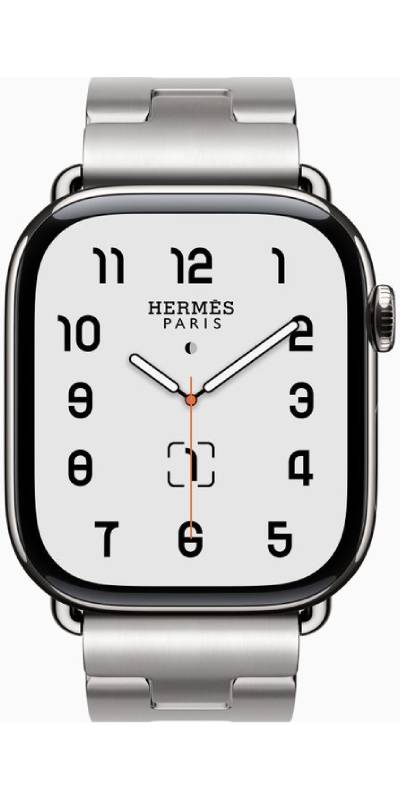
If you are buying a second-hand Hermès model for its faces, check it is genuine first. Our guide on how to spot a fake Apple Watch shows what to look for.
App Store face apps get you part of the way. Search the App Store for “watch faces” and you will find apps that add photo faces and extra complications. Most work by putting an image on Apple’s Photos face or adding a complication. None can replace the face design itself.
If you’re upgrading to a Series 12 or Ultra 4 for the Steps complication, get an instant quote for your current Apple Watch first. Same-day payment if it arrives before 2pm, and £10 towards postage.
FAQs
How do I change the watch face on my Apple Watch?
Touch and hold the current face, swipe left or right, and tap the face you want. To add a face you don’t have yet, use the Face Gallery in the Apple Watch app on your iPhone. Tap Get, then Add to Watch.
How do I change the home screen picture on my Apple Watch?
Use the Photos face. In the Apple Watch app, tap Face Gallery, then Photos, and choose up to 24 photos. Tap Add, and the face shows a new photo each time you raise your wrist.
How do I change the items on my Apple Watch face?
Those items are complications. Touch and hold the face, tap Edit, and swipe to the last page. Tap a slot, then turn the Digital Crown to choose what it shows.
Why can’t I change my Apple Watch face from my iPhone?
The face may have been added but not set. Open the Apple Watch app, tap the face under My Faces and tap Set as current Watch Face. If you have two watches, check the right one is selected under All Watches.
Can you get the Hermès face on a normal Apple Watch?
No. Hermès faces only come with Apple Watch Hermès models. No app or strap adds them to a standard watch.
Can I see my steps on my Apple Watch face?
On Apple Watch Series 12 and Ultra 4, yes: watchOS 27 added a Steps complication. On other models, open the Activity app to see your steps, or add a complication from a third-party app such as Pedometer++.

Sell your device
Sell your preloved devices instantly at the best price on the market with same-day payment!
Sell Now